Photo and PDF import
Digitize paper recipes without retyping them
Photograph a recipe card or upload a scan or PDF. Schmaus reads the material, prepares a structured recipe, and leaves you with an editable copy for everyday cooking.
How do you digitize an old recipe?
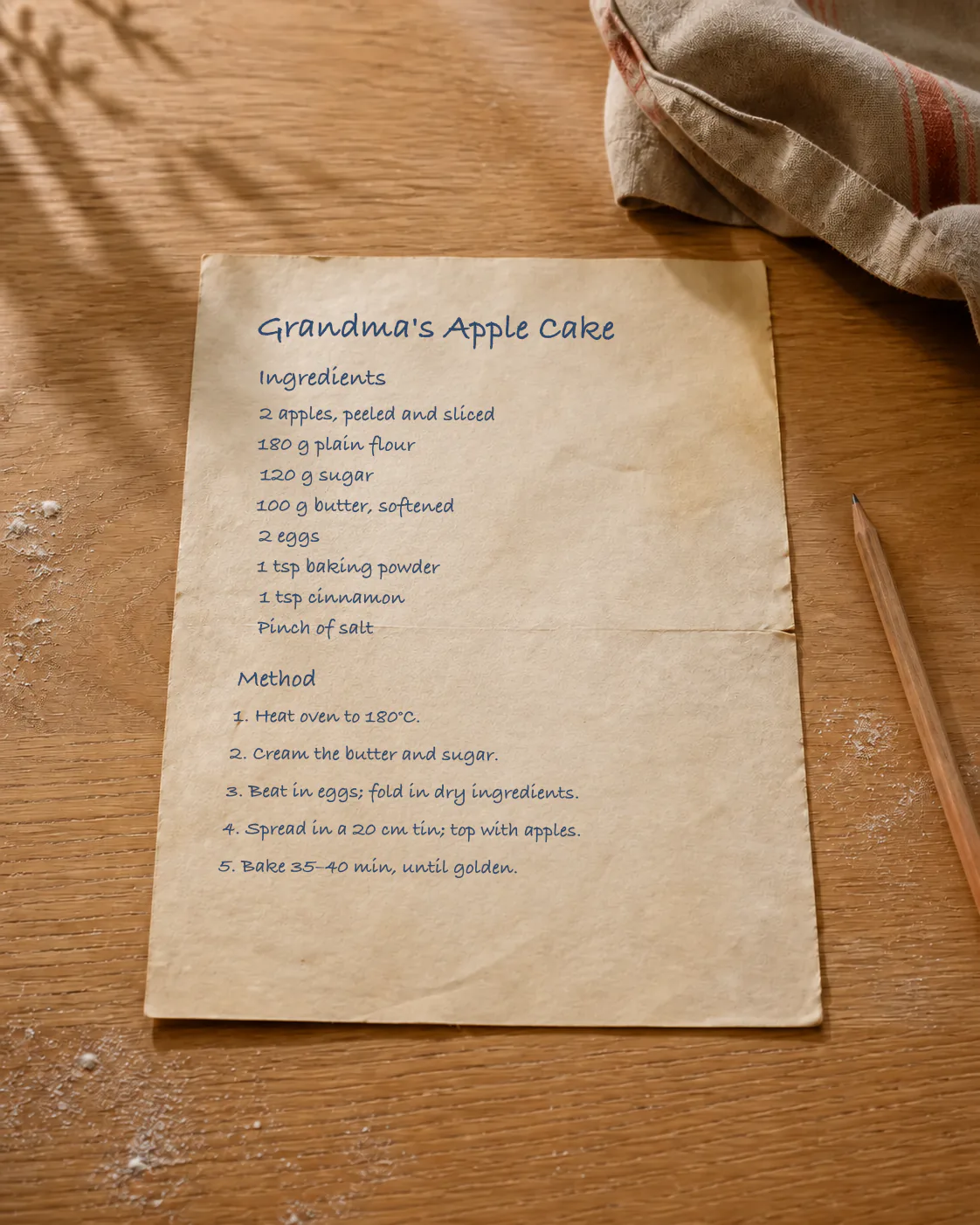
Take a sharp, well-lit photo of the complete recipe or select its PDF, then add the file in Schmaus recipe creation. The import can identify ingredients, quantities and instructions and turn them into a structured recipe you can revise with AI-assisted editing. Check the result against the source before relying on it.
Choose the source that preserves the most detail
A digital recipe is only as reliable as the page the importer can see. If you have the original PDF, use it instead of a screenshot because it usually keeps more text and page detail. For a cookbook or card, photograph the whole recipe first; add more close-ups only when the print is too small to read in one image.
Schmaus accepts photos, scans and PDFs in normal recipe creation. Multi-page documents are read as documents, so you do not need to copy their text into a note first. A clear photo of the finished dish inside a PDF may be attached after the recipe appears, which can take a little longer than the text import.
- Lay the page flat, use even light, and keep fingers and shadows away from the text.
- Capture the title, ingredient list, servings, timings and full method, including text on a second page.
- Upload the source in Schmaus, let the recipe appear, then compare every important amount and temperature with the original.
Printed pages, handwriting and imperfect scans
Clean print with clear units gives the most dependable result. Handwriting can work, but faded ink, crossed-out amounts, decorative type and notes in the margin make interpretation harder. A tilted photo can also turn a fraction or decimal into the wrong value.
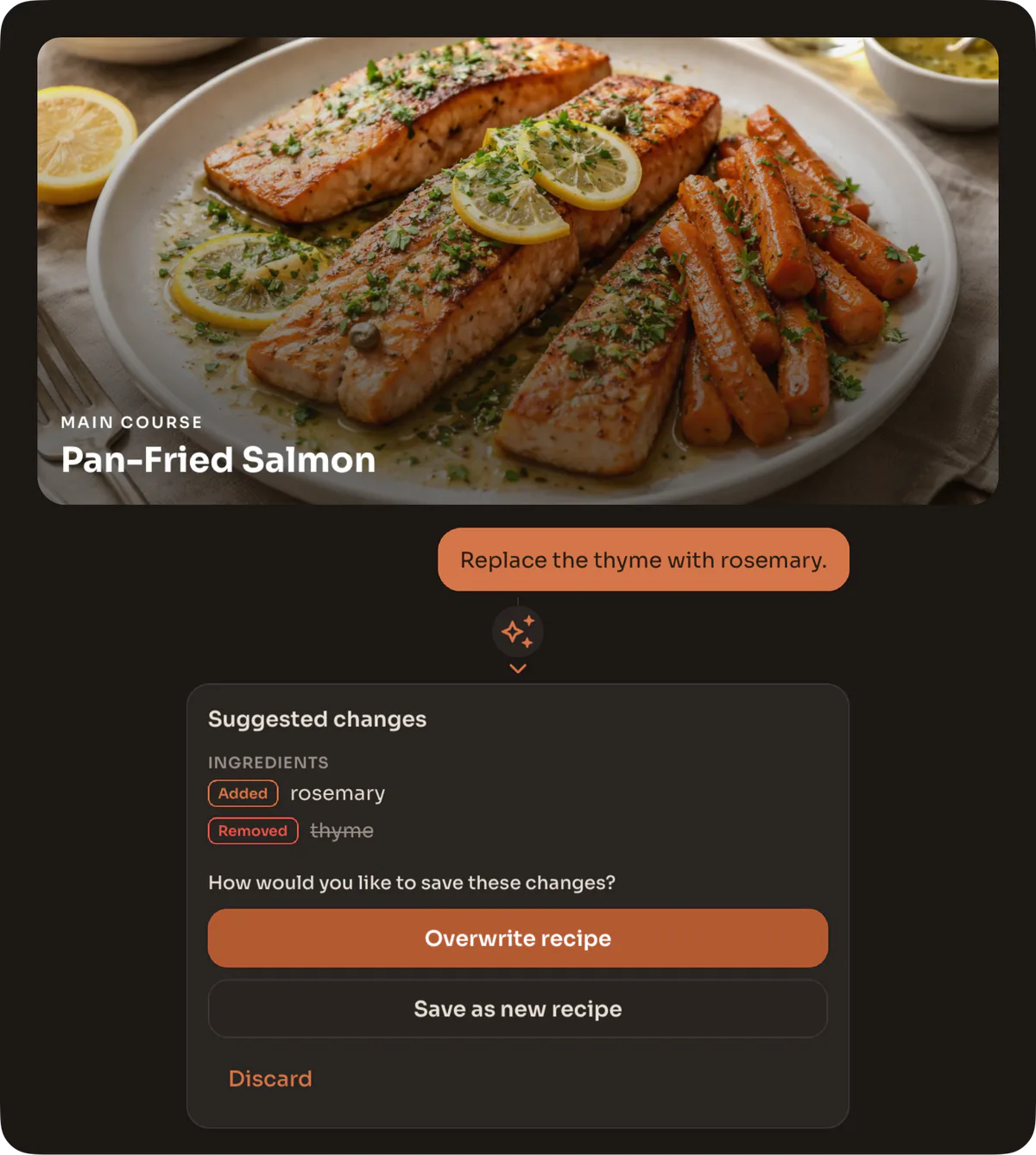
Do not discard the source as soon as an import succeeds. Review ingredient amounts, oven temperatures, cooking times and any allergy-critical detail. Schmaus creates an editable recipe, not a certified transcription. You can correct uncertain text and use AI-assisted editing to add family knowledge such as “use the small glass” to the relevant step.
- Use the highest-resolution original and avoid filters that blur fine print.
- Photograph handwriting straight from above and take a separate close-up of unclear lines.
- If a page contains several columns, keep their full order visible so steps are not mixed.
One PDF can contain more than one recipe
A PDF with several clearly separated recipes can produce several recipe entries in one import. This suits a short menu, a small family booklet or a few scanned pages. Strong titles and visible page boundaries help Schmaus tell where one recipe ends and the next begins.
A full backup from another recipe app is different. Do not turn hundreds of exported recipes into screenshots or one large PDF. Use the original Paprika, Mealie, Tandoor or Nextcloud Cookbook archive instead. Schmaus reads supported backups directly, without AI credits, and preserves structured fields more accurately.
Make the new copy better than the paper original
Once checked, the digital version becomes easier to live with. You can search by title, change servings, add a clear image, and update a step without writing over the original card. The source can stay safe while the working copy improves each time you cook it.
Use the subtitle for short provenance, such as who wrote the recipe, which book it came from or when your family started making it. That detail is useful later and helps other group members understand why the recipe matters.